Calendar file guides
Import ICS files into Fastmail and subscribe to calendar URLs
Have a downloaded .ics file? Import it to copy its events into a Fastmail calendar once. Have a calendar link instead? Subscribe, and Fastmail adds a separate, read-only calendar that it refreshes from that link.
By Just Schedule Me · Sources checked on
Import a file or subscribe to a URL?
An import is a one-time copy. A subscription is an ongoing, read-only connection to a calendar feed: calendar data published at a URL. Choose by what you have.
You have an .ics file
Import it
- Fastmail copies the events once, into a calendar you choose.
- Later changes to the original are not copied.
- Ordinary imported events can be edited; invitations have extra restrictions.
You have a calendar URL
Subscribe to it
- Fastmail adds the feed as a calendar of its own.
- Fastmail checks the URL for changes from time to time.
- The calendar is read-only: its owner makes the changes.
Neither option is two-way sync. Editing one calendar from Fastmail and another service needs a sync connection, which Fastmail documents separately.
Import an .ics file into Fastmail
Use Fastmail in a web browser on a computer. Save the .ics file first; if it came inside a ZIP, extract it. To try the steps, use the sample file.
Use a separate calendar for a large or unfamiliar file
Imported events sit alongside everything else in the calendar you pick. Before importing a long schedule or a file you have not checked, create a new calendar with Settings → Calendars → Create calendar. Give it a name and choose Save. If the result is wrong, you can delete that one calendar without touching your own events.
- Open Calendar, click the arrow beside New event and choose Upload calendar file….
- Select your .ics file.
- In Add events from file, check the selected events. Under Import events into, choose your separate calendar, then click Add to calendar.
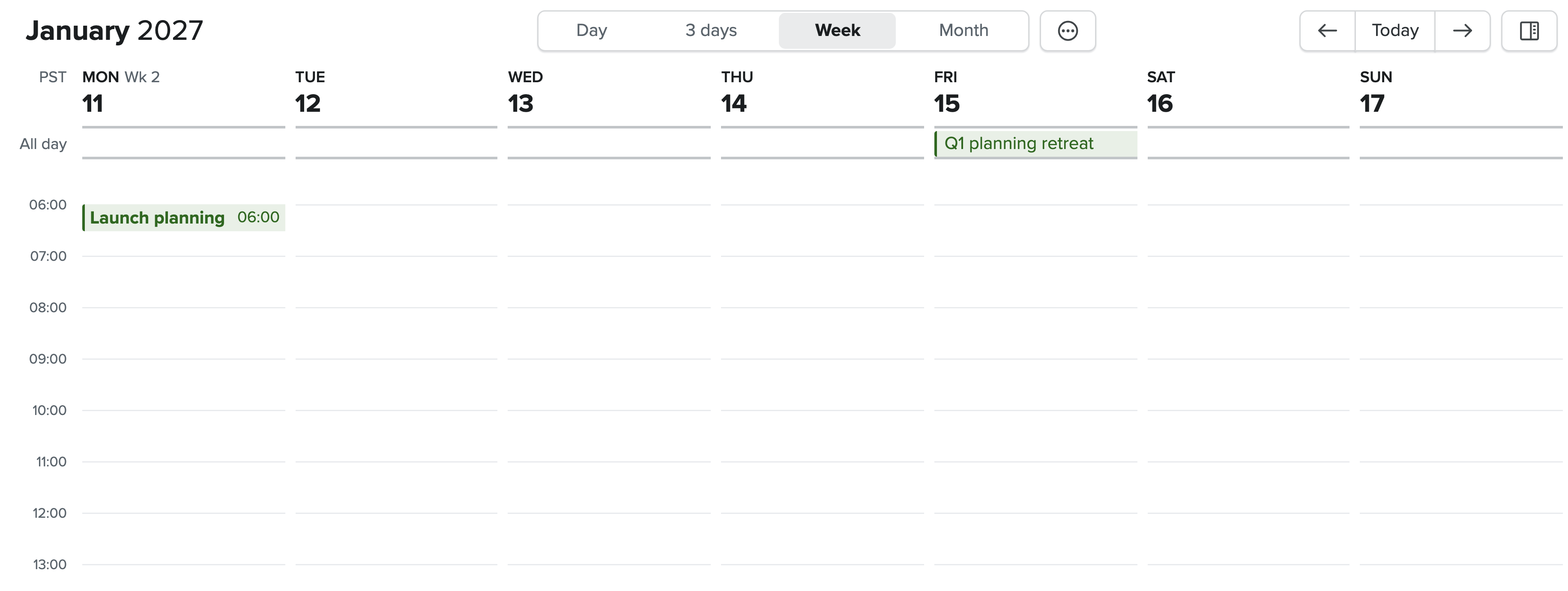
- Open Calendar, go to a date from the file and check an event.
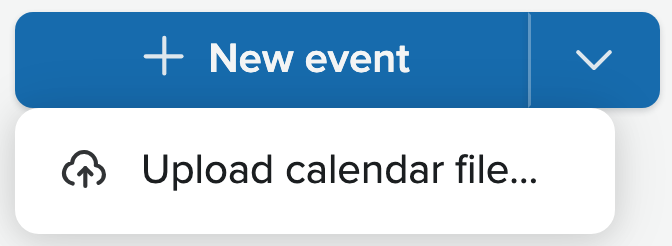
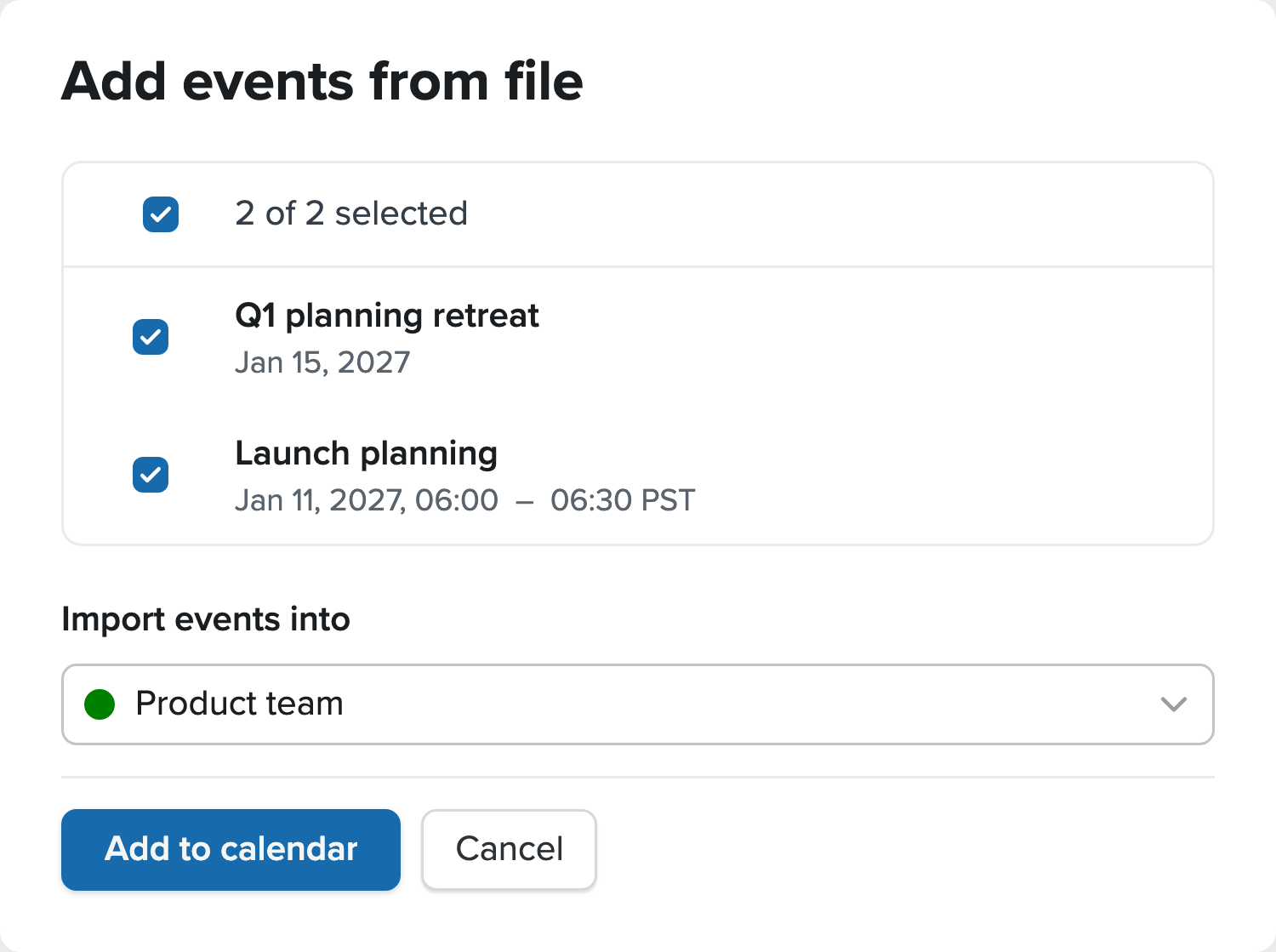
Fastmail also documents Settings → Migration → Upload contacts and calendars as an alternative route in its import and export help. The illustrations here show the Calendar menu route.
Fastmail says an import can replace matching events already in the calendar, but does not say how it matches them. Check the first import before adding the same file again: a second import is not a reliable way to update or remove duplicate events.
Subscribe to a calendar URL in Fastmail
You need the address of the calendar feed itself, not a web page about the calendar. Look for a link labelled iCal, ICS, calendar feed or subscribe; feed addresses often end in .ics. Copy the link address rather than downloading the file.
- Go to Settings → Calendars → My calendars and scroll to the Subscriptions section.
- Paste the feed address into the field showing https://example.com/holidays.ics and choose Subscribe to calendar.
- Give the calendar a name and color you will recognize, then choose Save.
- Open Calendar, make sure the new calendar is shown in your calendar list, and go to a date that should have events.

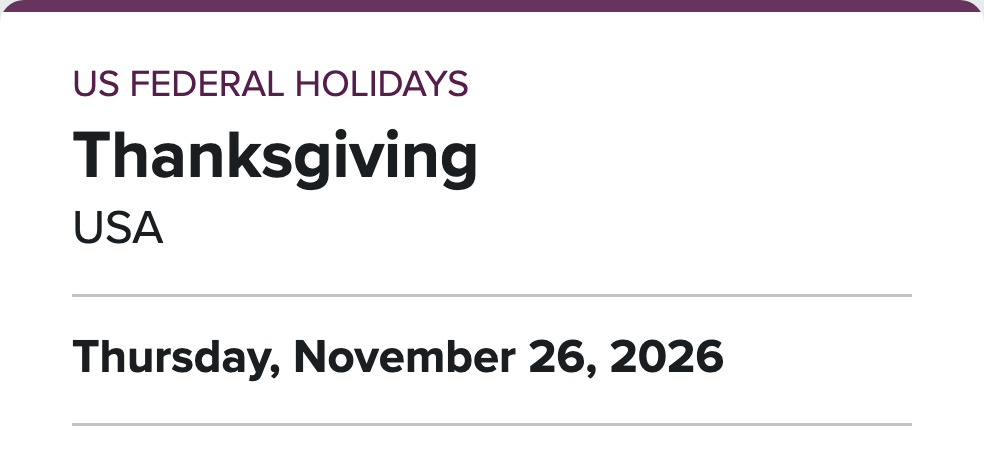
These steps come from Fastmail's calendar sharing via public URL help.
Try a US holiday calendar
Office Holidays publishes a US federal holidays feed you can subscribe to using this address. Name the calendar US federal holidays so it is easy to find:
https://www.officeholidays.com/ics-fed/usaWhat to expect from a subscription
- Read-only: you cannot edit its events in Fastmail. Changes come from the calendar's owner.
- Updates take time: Fastmail refreshes subscribed calendars periodically, so a change at the source may not appear straight away.
- Private links: the feed address of a personal calendar can show its events to anyone who has it. Do not post it publicly or show it in screenshots.
Subscribing is not the same as publishing. Publishing shares one of your own Fastmail calendars at a public URL so that other people can subscribe to it. This guide covers only subscribing to someone else's feed.
Check the imported or subscribed events
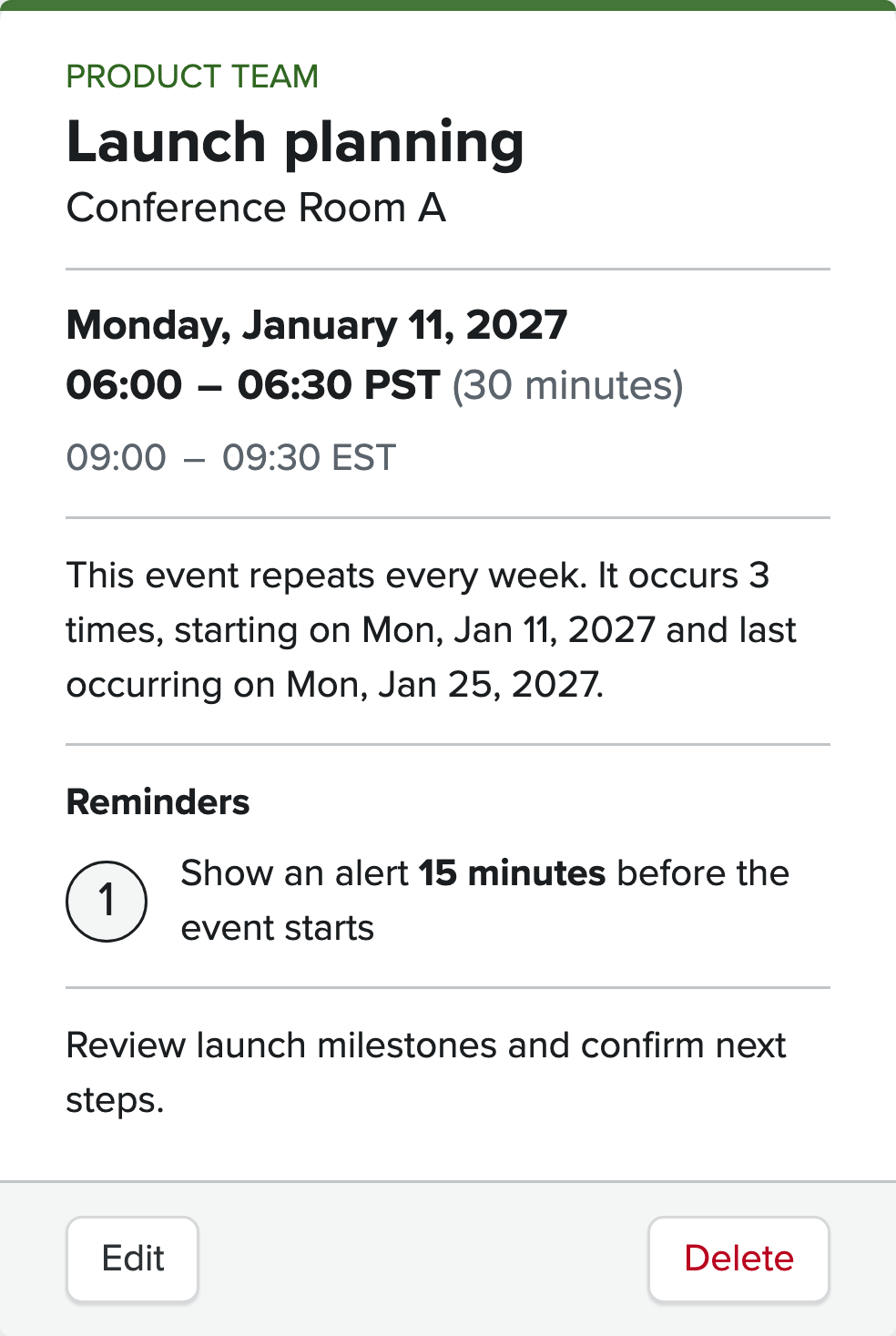
Open one event and compare it with the file or feed before you rely on the calendar.
- Calendar
- The event belongs to the calendar you chose for the import, or to the new subscribed calendar. Giving it a distinct color helps you tell them apart.
- Title, date and time
- The title and the start and end times match the source. For a repeating event, open a later occurrence too. All-day events should appear on their date without a time.
- Time zone
- Compare times in your own time zone. Launch planning starts at 9:00 AM in New York (America/New_York): that is 6:00 AM in Los Angeles on those January dates. If Fastmail shows a different time, see Fastmail's time zone help.
- Alerts
- Check the event's Reminders section yourself. Fastmail's help says alarms are not imported, but our Calendar menu import on October 13, 2026 retained the test event's 15-minute alert even with no default reminders set. We did not test alert delivery. If a reminder is missing or wrong, choose Edit, select the occurrence or series if asked, then use Add reminder or adjust the existing one and save.
Fix a Fastmail import or subscription problem
- You cannot find the events
- Check that you are signed in to the Fastmail account you meant to use, that the destination or subscribed calendar is shown in the calendar list, and that you are looking at the right dates. Preview the file in the ICS viewer to see which dates it contains.
- Events are at the wrong time
- Compare the source's time zone with your Fastmail time zone. In the file, a time ending in Z is UTC and TZID names a time zone; a time with neither has no fixed zone. Ask the sender for a corrected file rather than moving events by hand or importing again.
- Fastmail will not import the file
- Make sure you chose the extracted .ics file, not a ZIP. Check it with the ICS validator, then fix the reported errors or ask for a fresh export. A clean result does not guarantee that every detail imports.
- Fastmail cannot subscribe, or shows a connection error
- Check that you copied the feed address, not the web page that links to it. A feed stops working if its owner removes or changes the link, or while their server is unavailable. Fastmail's calendar troubleshooting help covers subscription errors.
- A subscribed calendar has not updated
- Fastmail refreshes subscriptions periodically, so allow time after the source changes. Do not import the feed as a file to speed this up: that copy never updates, and you may see the events twice.
- Events appear twice
- You may have imported a file and subscribed to the same calendar. Keep the subscription if you want updates, or the import if you want an editable copy, and remove the other. Importing again is not a reliable way to remove copies.
Practice file
Try importing a team schedule
This example schedule includes a recurring meeting and an all-day retreat in January 2027:
- Launch planning: Mondays, January 11, 18 and 25, 9:00–9:30 AM Eastern, with a 15-minute alarm.
- Q1 planning retreat: Friday, January 15, all day.
It has no guests, links or personal details. Import it into a separate calendar, check the four entries and reminder settings, then delete that calendar.
Using Fastmail on a phone?
These steps use Fastmail's website in a browser on a computer. We have not checked Fastmail's iPhone or Android apps for this guide, so we do not describe their controls. Import or subscribe in a browser, then look for the calendar in the app. To add a file to Apple Calendar instead, see the ICS to iPhone Calendar guide.
Inspect a file or use another calendar
To see what a file contains before importing it, open it in the ICS viewer. If an import fails, check the file with the ICS validator. To understand the dates, time zones and repeat rules inside it, read what an ICS file contains.
Importing into a different calendar service? Follow the Google Calendar import guide or the Outlook ICS import guide.
No ICS file yet?
If your schedule is in a spreadsheet, use the CSV to ICS converter to map columns and check the dates before exporting. To write an event by hand, use the ICS file generator.
For an email or pasted schedule, try text to calendar. For a flyer or screenshot, use photo to calendar. Just Schedule Me turns those details into events for you to review before exporting.
Paste or upload a scheduleSources and how we checked
These steps follow Fastmail's help, checked on the date shown at the top of this guide:
- Import/export your calendars: documented import routes, matching-event replacement and the alarm limitation that differed from our test.
- Calendar sharing via public URL: subscribing to a calendar URL from Settings → Calendars.
- Troubleshooting calendar issues: periodic updates and connection errors for subscribed calendars.
- Time zone support: how Fastmail handles time zones.
- How to synchronize a calendar: two-way sync, which is different from importing or subscribing.
- Fastmail settings: an overview of Fastmail's settings screens.
We checked Fastmail's website in Brave on October 13, 2026: creating a separate calendar, importing a test file through the New event menu, three weekly occurrences, an all-day event, time zone conversion, a retained reminder and a read-only calendar subscription. The illustrations recreate those controls with example data; they are not account screenshots. The downloadable team schedule and US holiday feed were checked separately and were not imported into that account. We did not test mobile apps, reminder delivery, repeat imports, or subscription refresh timing. Periodic refresh and matching-event replacement are documented behavior, not results of this test.
Imported invitations are a special case: Fastmail documents restrictions on editing events with attendees in its calendar migration help.